Interview Copilot Desktop Controls Explained
September 21, 2026By Beyz Editorial Team
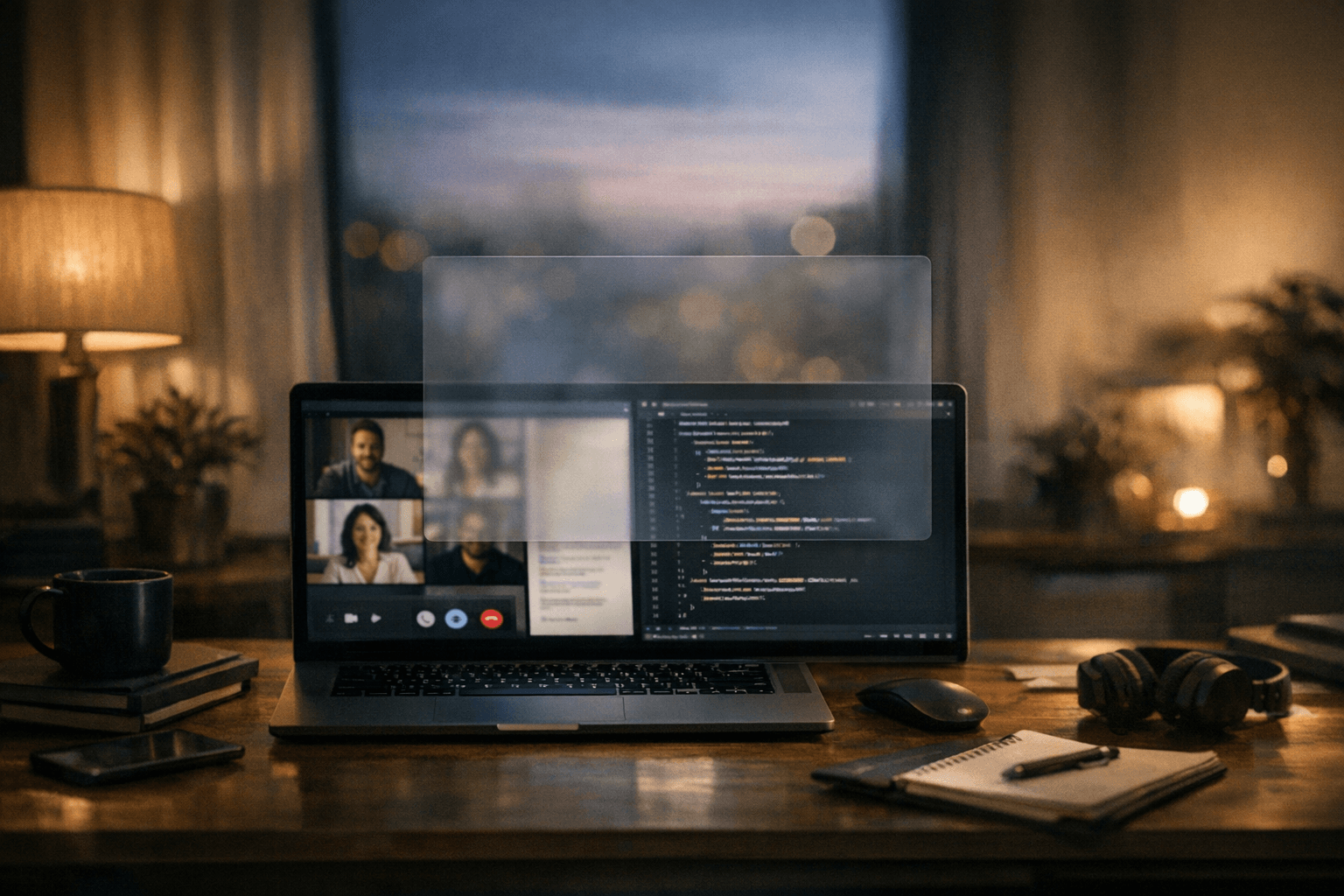
Quick answer
Use these interview copilot keyboard shortcuts to control the on‑screen overlay without touching the mouse:
- Click‑through: ⌥⇧P
- Opacity up/down: ⌥⇧↑ / ⌥⇧↓
- Hide and summon: ⌥⇧H
- Scroll the code pad: ⌃⇧↑↓←→
According to Beyz, these are system‑wide and work even when another app is focused, the overlay stays above Zoom/Meet/Teams/IDEs, and it’s invisible to screen sharing and recording Invisible Desktop.
What each control does and when to use it
All controls below are documented on Beyz’s Invisible Desktop page.
Click‑through mode (⌥⇧P)
- What it does: “Stops the overlay from blocking your cursor” so you can interact with the app behind it without moving or closing the overlay Invisible Desktop.
- When to use: Mid‑practice when you need to submit code, click a UI button, or drag a window while still seeing your notes.
- Tip: Toggle, act in the underlying app, then toggle again so the overlay is interactive when you return.
Opacity dial (⌥⇧↑ / ⌥⇧↓)
- What it does: Dials the overlay from “barely there” to “crystal clear,” “without taking your hands off the keyboard” Invisible Desktop.
- When to use: Fade down while speaking to reduce distraction; bring it up when you need to read details.
- Tip: A couple of quick taps usually finds a comfortable level for eye contact.
Hide and summon (⌥⇧H)
- What it does: “Make Beyz vanish. Bring it back instantly” with one shortcut Invisible Desktop.
- When to use: When you want a completely clean screen for a moment—e.g., while screen‑sharing or sketching on a whiteboard—then resume with your copilot.
Scroll the code pad (⌃⇧↑↓←→)
- What it does: “Pan the code without touching the mouse,” so you can skim hints/snippets via the keyboard Invisible Desktop.
- When to use: While narrating a solution and checking a snippet or outline.
Always‑on‑top, system‑wide, and invisible to recording
- Stays above Zoom, Google Meet, Microsoft Teams, and your IDE—and “never steals focus” from the app you’re in Invisible Desktop.
- “Every shortcut. System‑wide. They work even when another app is focused” Invisible Desktop.
- Uses “native OS content protection,” appearing as a blank area to Zoom, Meet, Teams, OBS, and QuickTime per the vendor page Invisible Desktop.
10‑minute muscle‑memory drill
Build reflexes once; reuse them for every practice and mock.
- Warm up (2 minutes)
- Open your video app and a coding window. Summon the overlay.
- Tap opacity down twice, up twice. Repeat 3 times.
- Click‑through reps (3 minutes)
- Toggle click‑through (⌥⇧P), type a few characters in your IDE, toggle again.
- Do five quick cycles: toggle → act → toggle → read.
- Hide/Summon cadence (2 minutes)
- Hide the overlay while you count to five; summon it back.
- Repeat 6–8 times so it’s automatic during live moments.
- Scroll scan (3 minutes)
- Use ⌃⇧ arrows to skim a longer hint. Practice “line → glance up → speak” rhythm.
- Alternate with a couple of opacity taps to find your preferred reading level.
Practice scenarios mapped to real interviews
Coding practice
- Goal: Keep structure visible but your hands free to code.
- Flow:
- Start with mid‑opacity for readability.
- Toggle click‑through (⌥⇧P) to run code or switch panes; toggle back to interact with the overlay.
- Scroll the code pad (⌃⇧ arrows) to the next section as you narrate.
- If you’re exploring on‑screen solving, see Beyz’s product page for Screen Solver. It documents Coder mode and Solver mode, including proactive detection of coding problems and answering visible questions on your current screen Screen Solver. For help choosing modes, see the guide AI Coding Screen Solver: Choosing the Right Mode.
Behavioral or system‑design practice
- Goal: Keep a brief outline visible without sounding scripted.
- Flow:
- Start at lower opacity so you’re not tempted to read verbatim.
- Hide (⌥⇧H) for segments where you want maximum eye contact; summon when you need your next point.
- Use the scroll keys to jump to metrics, trade‑offs, or follow‑ups you want to remember.
- Useful follow‑ups:
Setup and compatibility
- Availability and OS: The Invisible Desktop app is available for Mac and Windows. Beyz lists macOS 14+ and Windows 11 22H2+ as requirements Invisible Desktop.
- Always‑on‑top and invisible to recording: Designed to float above meetings and IDEs and to be invisible to screen sharing/recording, per the vendor page Invisible Desktop.
- First‑time setup: Follow the step‑by‑step Interview Copilot Desktop Setup Checklist.
For the broader toolset and real‑time features, see Beyz AI, real‑time suggestions, and interview preparation tools.
Troubleshooting and tips
- Shortcut conflicts: If another app uses the same combo, temporarily disable that other shortcut or switch to a window where it won’t interfere during practice.
- Practice with your real layout: Arrange your video app, editor, and overlay as you would on interview day. Run the 10‑minute drill until you no longer look down at the keyboard.
- Opacity discipline: If you catch yourself reading, notch opacity down two steps and re‑summarize from memory.
- Click‑through rhythm: Get in the habit of a quick toggle → act → toggle back. The less you move the mouse, the steadier your narration feels.
FAQ
Will interviewers or recording tools see the overlay?
Beyz states the overlay uses native OS content protection and appears as a blank area to Zoom, Google Meet, Teams, OBS, and QuickTime Invisible Desktop.
Do the shortcuts work when another app is focused?
Yes—Beyz says every shortcut is system‑wide and works even when another app has focus Invisible Desktop.
Where can I learn about on‑screen solving modes?
For mode details and behavior, see the product page for Screen Solver. It explains Coder mode and Solver mode and how they operate on your screen Screen Solver.
Sources
- Beyz Invisible Desktop | Beyz AI
- Beyz Screen Solver — Invisible, Undetectable AI for On-Screen Questions | Beyz AI